File & nav:
ls    -> list the files in the current directory
cd    -> change directory
pwd   -> prints the path of the current directory
cd    -> copy / duplicate files and directories
mv    -> move or rename files and directories
rm    -> permanently delete files and directories
rm -r -> for folders *(delete all files in it)*
mkdir -> create new directory
File viewing & Editing:
cat    -> printing and viewing files
less   -> view files using interactive pages/display
nano   -> view/edit files
Permissions:
chmod <options> mode filename        -> control who can read/write files
chown <options> owner<:group> files  -> change owner/group associated with files
System Monitoring:
top      -> real-time view of a running system (CPU)
htop     -> newer version (better visual) of top *(Should install before hand)*
df -h    -> available disk space of each partition
free -h  -> real-time memory usage
Networking:
ip a      -> show useful info about network interface
ping      -> test reachability of a host
ss -tulpn -> list all listening TCP/UDP ports
Services:
systemctl status <service>       -> current information about a service
systemctl start <service>        -> start a certain service, in current runtime                                       session
systemctl stop <serice>          -> stop a currently running service
systemctl enable --now <service> -> start the service for every session *(--now                                        is for starting it for current session)*
systemctl restart <service>      -> restart a certain service
Server commands:
sudo shutdown now    -> shutdown system *(high-level)*
sudo reboot          -> reboot system *(high-level)*
sudo shutdown +10    -> schedule shutdown is 10mins
sudo shutdown -c     -> cancel schedule shutdown

sudo systemctl poweroff    -> shutdown system *(low-level)*
sudo reboot                -> reboot system *(low-level)*
systemctl status           -> check system status

sudo apt update                            -> update package list
sudo apt upgrade                           -> upgrade installed packages
sudo apt update && sudo apt upgrade -y     -> update and upgrade packages
sudo apt install <package>                 -> install package
sudo apt remove <package>                  -> remove package
files structures:
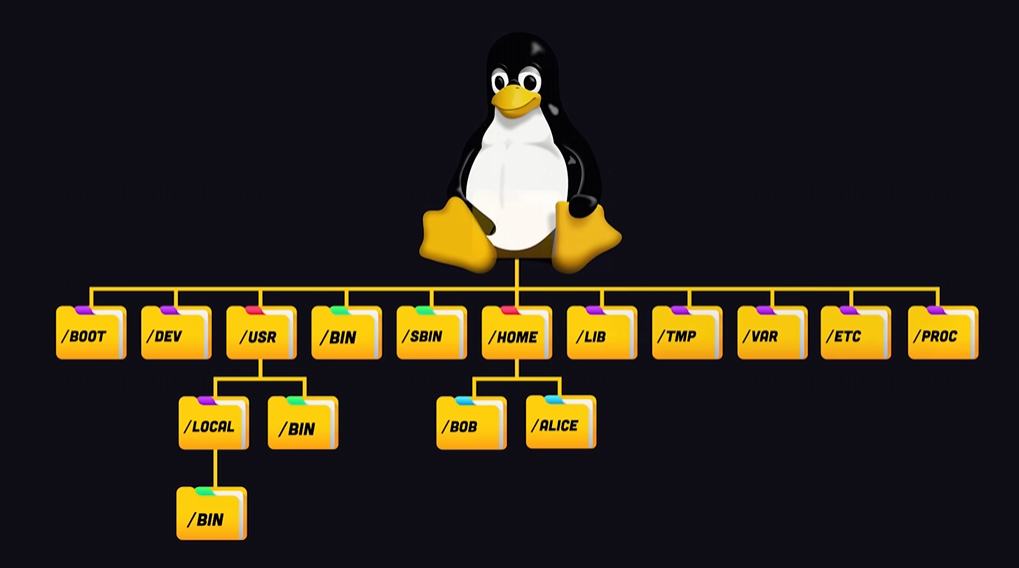
root (/):
/ is the root (top of everything)
home:
/home is like C:\Users\User
Its where the user’s files are located; here should lay your personal files.
etc:
/etc is the System configuration files
var:
/var is the variable data (logs, caches, databases)
usr:
/usr is the installed software and libraries (program files)
So it is where the non-essential (for system) installed binaries are located.
It contains a /local directory to provide a safe place to compile locally.
lib:
/lib is for shared code between binaries.
bin:
/bin is where all essential system commands are found (ls, cp, mv, bash, …)
So it is where essential executables are located.
sbin:
/sbin is the same as bin bot for system operation that is only executable for the user(root)
tmp:
/tmpis for temporary files
proc:
/proc is not a physical directory in the storage device, but it is created in memory on the fly to keep track of running processes.
dev:
/dev is for devices (hard disk, usb, …)
mnt / media:
where drives get mounted
/mnt manual mounts
/media auto mounts
boot:
/boot is the bootloader and kernel. For system startup.
root:
/root home directory for the root user (admin). not the same as /.
write cd OR cd ~ to go back to /home/user
write cd - to go back
write pwd to know where you are